Most presentations start the same way: a blank title slide, a deadline, and an hour spent deciding what goes on slide three. InsightSlides starts from the other end. You describe what the presentation is for; it proposes the structure, writes the slides and their speaker notes, and draws the diagrams, so your time goes into getting the content right rather than into laying out boxes.
Describe it
Create new presentation opens a short form. Describe the deck in plain words (who it is for, what it must cover, what you want people to decide), choose the number of slides (1 to 50), a tone (professional, casual, academic or creative) and a template. The description needs at least ten characters; in practice a good paragraph does much better, as the guide to writing a brief explains.
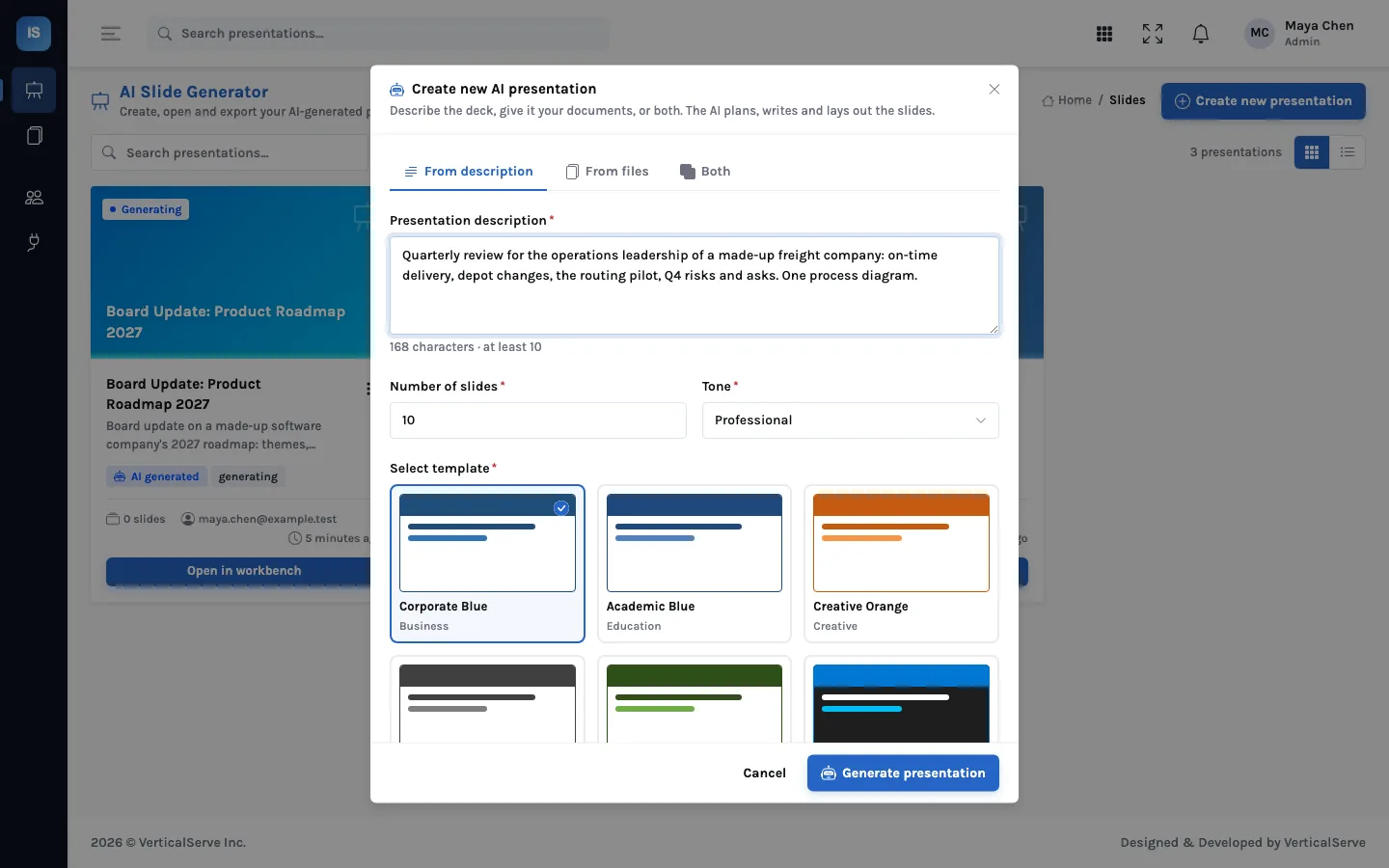
It plans, then writes
Generation runs in the background in stages, and the card for the deck shows its progress. First a planner proposes a title, the topic of each slide, a content strategy and where a diagram would help. Then each slide is written: a title, an optional subtitle, three to five bullet points and speaker notes. Slides that suit a diagram get one, written as Mermaid code so it stays editable. Finally the slides are saved with their text and diagram elements. How generation works goes through each stage.
Refine it in the workbench
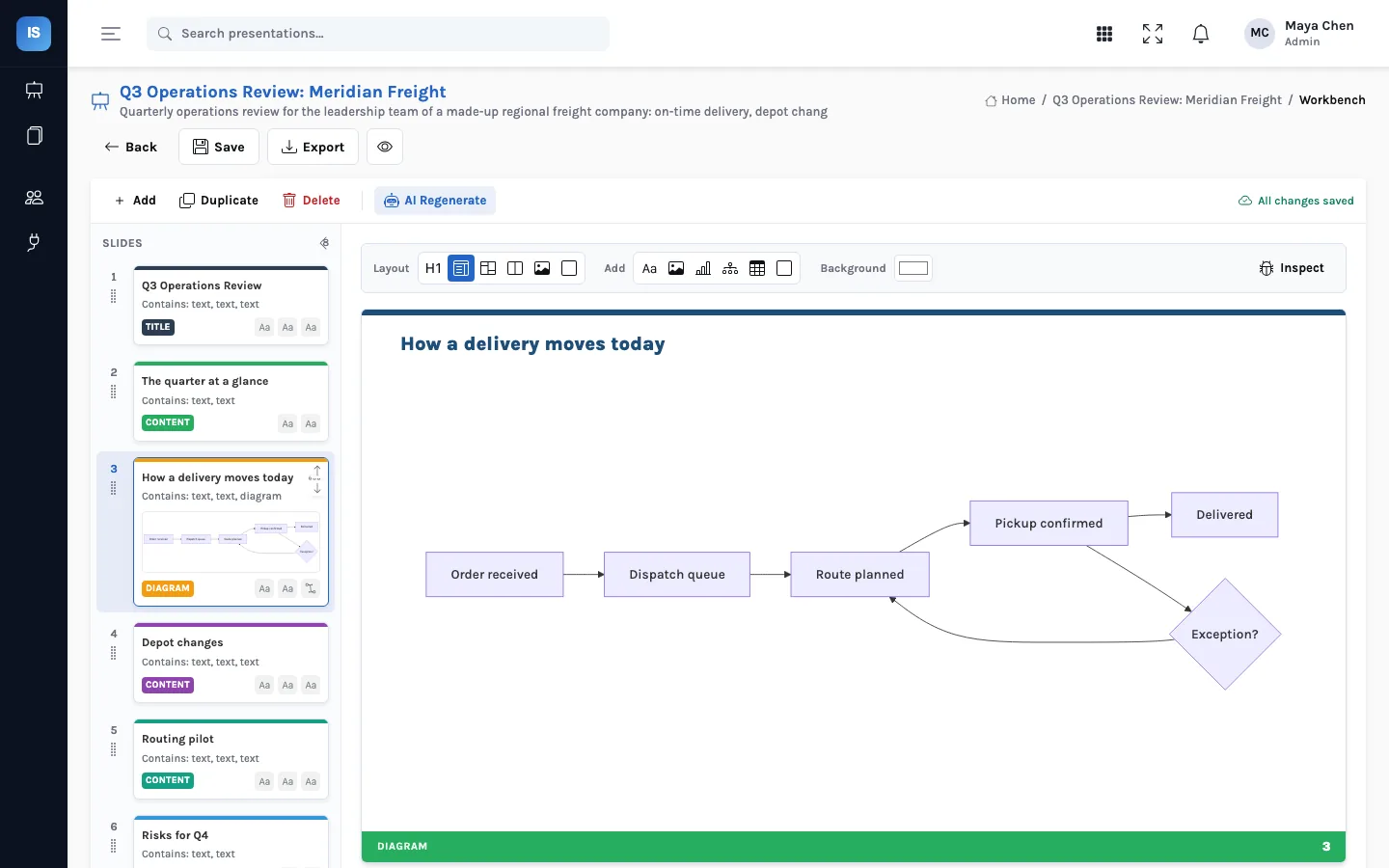
Every generated deck opens in the workbench: a slide navigator on the left, the slide in the middle, and its elements and speaker notes below. Change a layout, edit text in place, add text, images, charts, diagrams, tables or shapes, duplicate or reorder slides, or describe a diagram and have it drawn for the slide.
Templates and export
Templates set the colours, fonts and layouts. Six come built in (Corporate Blue, Modern Green, Creative Orange, Academic Blue, Tech Dark and Minimal Gray), and you can upload your own PowerPoint template; InsightSlides reads its layouts and fonts. When the deck is ready, export it to PowerPoint, with diagrams as images or as native, editable PowerPoint shapes, to PDF, or to Google Slides.
A first deck in ten minutes
- Open Getting started or go straight to Slides → Create new presentation.
- Write a paragraph: who the audience is, what you want from them, the sections in order, the facts that must appear, and where a diagram would help.
- Choose the slide count, tone and template, and generate.
- When the card says Ready, open it in the workbench, read the titles in the navigator, and fix the order.
- Replace general wording with your own figures and examples, check the notes, and export.
What carries into the exported file
It helps to know before you build a deck what the export contains:
| On the slide | In PowerPoint and PDF |
|---|---|
| Titles, subtitles and text | Included as text |
| Mermaid diagrams | Included: as images, or for flowcharts as native PowerPoint shapes; PDF renders them as images |
| Images, charts and tables | Check them in the exported file and finish them in PowerPoint |
| Template colours | Shown in the workbench; the exported files use the product's own 16:9 design |
For text-and-diagram decks, which is what generation produces, that is the whole deck. If a slide depends on a chart or a table, plan to finish it in PowerPoint after export.
Check the export once with a short test deck before you rely on it for something important.
How to decide if it fits
- Good fit: recurring updates, onboarding and training, process explainers, first drafts of pitches, anything where the structure and the first wording are the slow part.
- Less good: decks that are mostly charts from live data, or that must match a detailed corporate master slide by slide. Finish those in PowerPoint after export.
Frequently asked questions
Can it use our documents?
Yes: attach source documents and sample slides in the create form, alongside the description. Put the facts that must appear on the slides into the brief as well.
Where does our text go?
The description and slide topics are sent to OpenAI with your organisation's key during generation and when you draw a diagram from a description. Editing, templates and export happen in InsightSlides and its database.
Can we generate the same deck again?
Generation is not repeatable word for word: the same brief gives a similar structure and different wording. Keep the brief, and treat each run as a new draft.
Can several people work on one deck?
A deck is saved to the shared database, so anyone with access can open it in the workbench. There is no live co-editing: the workbench saves a draft every 30 seconds while there are changes, so agree who is editing a deck at a time.
Who it is for
- Managers and team leads who present the same kinds of update every month or quarter.
- People, operations and training teams producing onboarding, process and policy decks.
- Anyone with a deadline who would rather edit a first draft than face a blank slide.
Where it runs
InsightSlides is a FastAPI service with a React interface and a PostgreSQL database, part of the Insight product family with a shared sign-in. Slide generation uses an OpenAI model (GPT-4o) with your organisation's API key; editing, templates and export work without one.