"AI-generated slides" can mean anything from a single model call that returns text to a carefully staged process. InsightSlides uses a staged process, and knowing the stages helps you write better briefs and understand what you get back.
Starting a generation
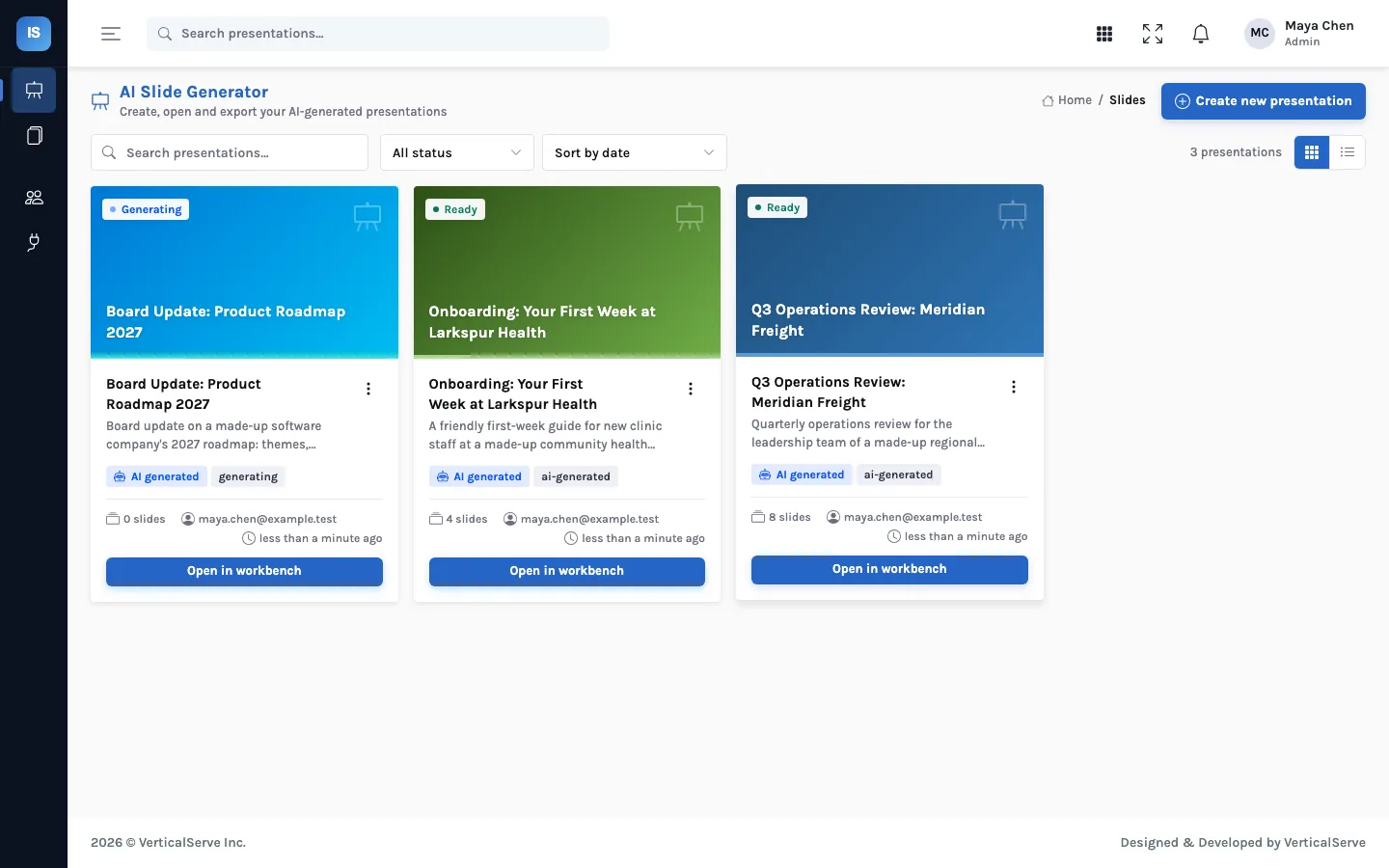
Pressing Generate presentation creates the deck straight away, with your description, slide count, tone and template, and starts generation in the background. The dialog switches to a progress view, and the deck's card on the Slides page shows a Generating badge until it finishes. You can leave the page; generation carries on.
1. The planner
The first model call acts as a presentation planner. From your description, tone and requested number of slides it returns a plan: a title, a list of slide topics in order, an overall content strategy, suggested diagrams, and its own estimate of the number of slides. The plan is saved with the deck, so you can see the outline the slides were written from.
2. Writing each slide
Each topic is then written as its own slide, in a separate model call that sees the slide's topic, your description and the tone, but not the other slides. The model is asked for a title of at most 60 characters, an optional subtitle, three to five bullet points, speaker notes, and whether the slide would benefit from a diagram (and of what). Writing slides one at a time keeps each slide focused on its own topic. The flip side is that two slides can make the same point, because neither sees the other; the workbench is where you catch that.
3. Diagrams
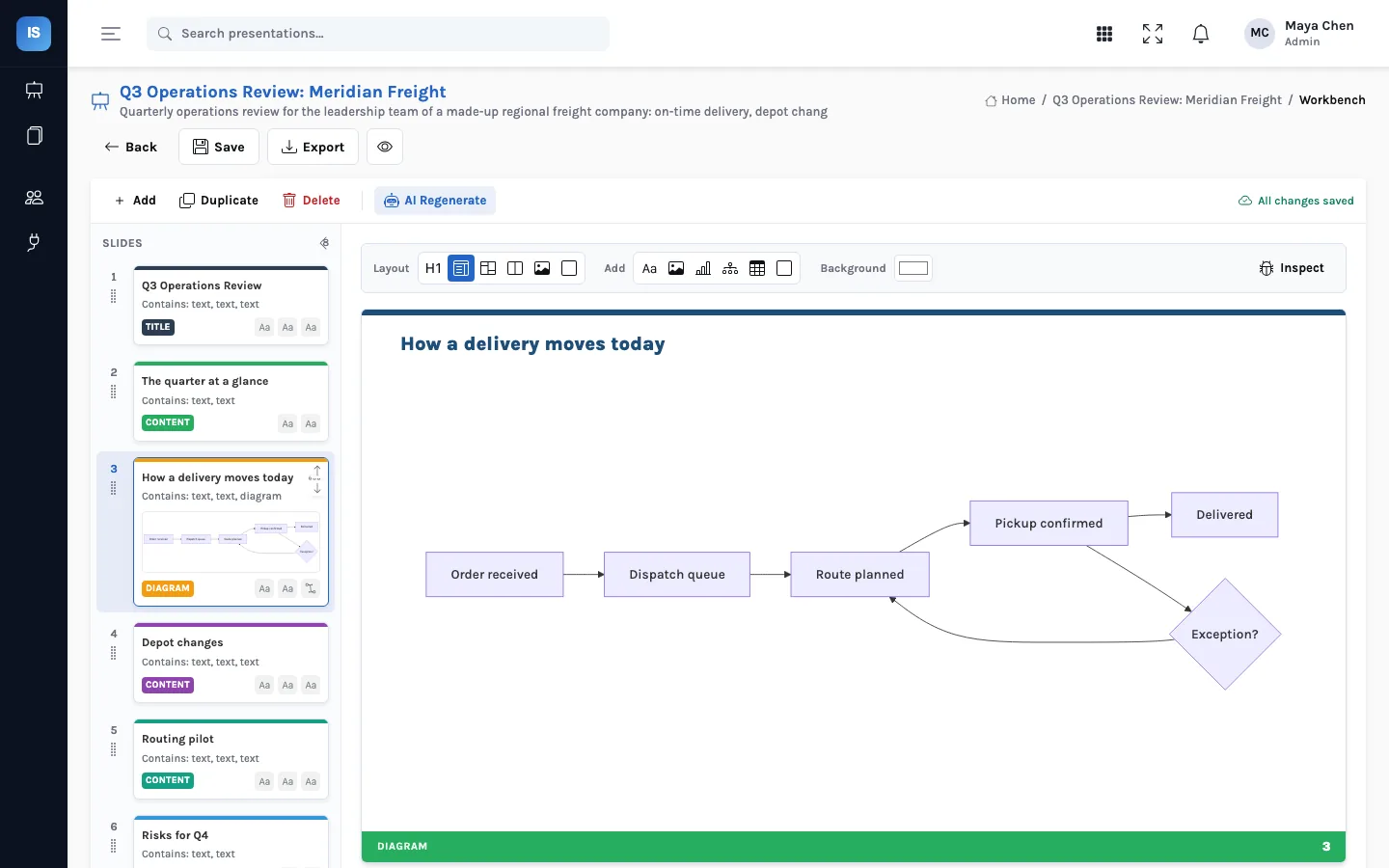
For every slide that asked for a diagram, a further call writes Mermaid code: a flowchart, sequence, pie or timeline. The instructions favour diagrams that read at presentation scale: five to eight nodes, short labels, linear flows, a white background. If that call fails, the slide gets a simple starter flowchart that you can replace. More in diagrams in your slides.
4. Assembly
Finally the slides are saved, each with its text elements (title, subtitle, bullet points) and diagram element, its speaker notes and the raw generated content. The deck is marked completed at 100% and opens in the workbench.
| Stage | Model call | Saved |
|---|---|---|
| Planner | one, for the whole deck | the plan and slide topics on the deck |
| Content | one per slide | title, subtitle, bullets, notes, diagram suggestion |
| Diagrams | one per slide that needs a diagram | Mermaid code |
| Assembler | none | slides and their elements |
Reading the result
Open the new deck and read the slide titles in the navigator before anything else. They are the plan's slide topics, and they tell you whether the generator understood the brief. If the order is wrong or a section is missing, fix the structure first (reorder, add or delete slides), then the wording. If the titles are far from what you meant, it is usually quicker to sharpen the brief and generate again than to rewrite every slide. Then read the speaker notes: they say what each slide is meant to argue, which makes weak bullets easy to spot.
When something goes wrong
Models do not always return clean output. If the plan cannot be read, InsightSlides falls back to a basic plan with one generic topic per slide; if a slide's content cannot be read, that slide gets placeholder bullets with its topic as the title. Both are visible immediately in the workbench, where you can edit them. If generation fails outright, the deck is marked failed with the reason, and the progress view offers a retry.
Worked example: what one brief produces
Take a made-up brief for six slides: "Monthly update for the support team lead: ticket volume, the two new macros, the backlog on refunds, and one ask for weekend cover. One flowchart of how a refund ticket moves." The planner returns a title and six topics, roughly: the month at a glance, ticket volume, new macros, the refund backlog, how a refund ticket moves, and the ask. Each topic is then written on its own with the brief as context, so the refund slide knows about refunds but not what the volume slide said. The refund-flow slide suggests a flowchart, and the diagram step writes its Mermaid code.
Two things to expect from that run. The figures on the volume slide are generic unless the brief gave them. And the number of slides is the number of topics the planner returned: you asked for six, and the deck has as many slides as the plan has topics, which is usually, but not always, the count you asked for.
The settings behind it
- Two temperatures. The planner and the diagram step run at a low temperature (0.3) for structure; the slide writer runs higher (0.7) for varied wording.
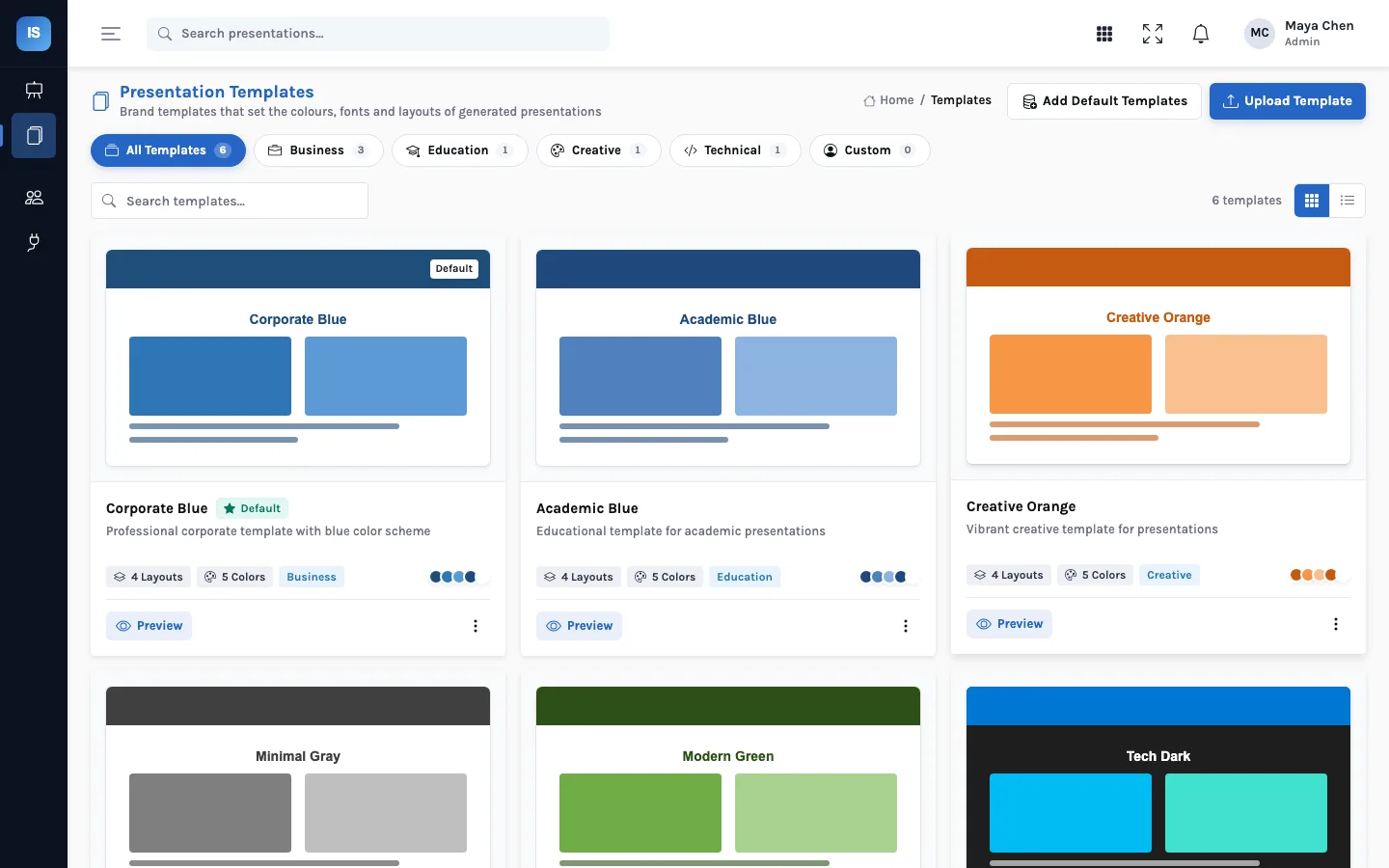
- The template is not an input. The template you pick is saved with the deck and styles it in the workbench; it does not change what the model writes.
- Limits. The description must be 10 to 5,000 characters, and the slide count 1 to 50.
- Progress. Each stage writes a log entry with its progress (planner, content, diagrams, assembly), which is what the progress view and the deck card read.
Frequently asked questions
How long does a deck take?
It depends on the number of slides and on the model's response times: one call for the plan, one per slide and one per diagram, run one after another. Longer decks take proportionally longer.
How do I change one slide?
Edit the slide in the workbench, or generate a new deck from a revised brief when the whole story needs to change.
OPENAI_API_KEY), set once for the installation; editing, templates and export work on their own.